

You've been assigned to roll out Breeze. Or maybe you've been asked to figure out if your team should adopt it. Either way, you're staring at a blank slate and wondering where to actually start.
Most teams make this harder than it needs to be. They flip Breeze on, stare at a blank chat window, and then tell their leadership, "We tried AI. It didn't work for us." The problem isn't Breeze (or any other tool necessarily). The problem is they skipped the foundational work.
Here's the truth: Breeze only works if you set it up right. And setting it up right means following these six steps, in order. No shortcuts. No skipping ahead. This guide will take you from "What do I even do with this?" to "We're ready to scale Breeze across our team."
By the end, you'll understand exactly what Breeze can do, you'll have hands-on experience using it, and you'll have a clear assessment of whether your organization is ready to implement it broadly. You'll also know exactly where to go next.
Let's get started.
Step 1: Set Your Role Correctly (This Matters More Than You Think)
Before you do anything else with Breeze, fix your user role in HubSpot.
This is not a checkbox. This is foundational. If your role is wrong, every single answer Breeze gives you will be slightly off.
Here's why: Breeze tailors its responses based on what your role is. A marketing manager and a content creator have different needs. Breeze understands this. It knows that a marketing manager cares about campaign performance metrics, while a content creator cares about brand voice consistency. If your role is set to "Admin," Breeze will overwhelm you with information you don't need. If it's set to "Sales Rep," it'll focus on deal insights instead of marketing strategy.1
How to Check and Fix Your Role:
Log into HubSpot. Click your profile picture in the top right. Select "Account and settings." Click "Users and teams." Find your name in the list. In the "Role" column, you'll see what you're currently set to.
Most people are set to something generic that doesn't match their actual job. Fix this now.
The available roles are Core User (general access), Super Admin (everything), Sales Hub User, Marketing Hub User, Service Hub User, or a custom role your admin created. You want the one that matches what you actually do.2
Common Mistakes:
Super Admin is too broad. You'll get information about user management, account settings, and system-level data you don't need. If you're a marketer, don't be a Super Admin unless you have no choice.
Setting yourself to the wrong hub. If you're a marketer, you need Marketing Hub access. Not Sales Hub. Not Service Hub. Marketing Hub.
Not updating when you change positions. If you moved from individual contributor to manager, your role needs to change. Breeze adjusts its guidance based on seniority level too.
Why This Is Step 1:
Everything that follows depends on this. If your role is wrong, you're going to get frustrated with Breeze's responses because they won't match your actual situation. You'll think it's not working when really it's just misconfigured. Fix it before you move on.
Action: Open HubSpot right now. Check your role. If it's not accurate, click it and change it. This should take 30 seconds. Do it before reading Step 2.
Step 2: Complete Your Brand Kit Setup (2 Hours Well Spent)
Here's what happens when you don't set up a brand kit: You ask Breeze to draft an email. It generates something professional. But it doesn't sound like your company. So you rewrite it. You ask Breeze to write a social post. Same thing. Professional but generic. You rewrite it again.
This is a waste of your time. And it's completely avoidable.
The brand kit is where you tell Breeze who you are. Once it's set up, everything Breeze creates will automatically reflect your brand. No rewriting. No "that doesn't sound like us." Just on-brand output, every time.3
What You Actually Need in Your Brand Kit:
Brand voice. This is how you talk. Are you formal and professional? Conversational and friendly? Direct and no-nonsense? Write a few sentences describing your brand voice. Give examples. If you can say something like "We're approachable but not fluffy. We're expert-level but not condescending. We use contractions and short sentences," Breeze will learn it.
Brand tone. This is slightly different from voice. Voice is consistent. Tone changes based on context. How do you sound when you're celebrating a win? How do you sound when delivering bad news? When you're explaining something complex? When you're motivating your team? Document these.
Colors: Get your HEX codes. Not "blue." Not "our brand blue." Actual HEX codes: #0056FF, #00AA44, etc. If you don't have them, open your brand guide or ask your designer. This takes 10 minutes.
Fonts: The specific typefaces you use. Helvetica, Arial, Georgia, or custom fonts like Montserrat. Include primary font and secondary font. Breeze needs to know these.
Logo: Upload your logo in both dark and light versions. And your favicon.
Brand positioning statement: One or two sentences about what you do and for whom. "We're the customer data platform built for B2B SaaS companies." That's it. Breeze uses this to understand your market position.
Key messaging pillars: What are the three to five main things you want customers to know about your company? Document them. Breeze will weave these into your content.
How to Set This Up:
Navigate to Content (or Settings) > Brand. HubSpot will walk you through a setup wizard. Fill in each field. Be specific. The more detailed your brand kit, the better Breeze gets at keeping content on-brand.3
Why This Is Critical:
Without a brand kit, Breeze can't help you scale. You'll spend more time editing AI output than if you'd just written it yourself. With a brand kit, Breeze becomes a force multiplier. You ask for a campaign brief, an email series, a landing page headline—and it comes back ready to use. Maybe needs a tweak. Not a complete rewrite.
Common Mistakes:
Being too vague about brand voice. "Professional" doesn't tell Breeze anything. "We explain complex concepts in plain English, use humor sparingly, and never use jargon unless we define it" actually tells Breeze something.
Forgetting your dark mode logo. Digital marketing exists in light mode and dark mode. Your logo needs to work in both.
Not including the fonts your designer actually uses. If you upload generic fonts but your designer uses custom fonts, there's a disconnect. Be specific.
Treating this as busywork. It's not. This is the difference between Breeze being useful and Breeze being a toy.
Action: Block 2 hours on your calendar this week. Gather your brand guide. Get your design files. Complete your brand kit setup. Do not proceed to Step 3 until this is done.
Impact Metric: After your brand kit is complete, time spent editing AI-generated content should drop by 30-40%.
Step 3: Explore the Prompt Library and Find 3 That Actually Matter
The prompt library is where you find pre-built prompts organized by what you actually need to do. This is where a lot of teams get overwhelmed. There are hundreds of prompts. It feels like drinking from a fire hose.
Don't be that person. You don't need to memorize all of them. You need to find three to five that apply to your actual job.
Where to Find It:
Open Breeze Assistant. You'll see a button in the top right that says "Prompt Library" or looks like a bookmark. Click it. You'll see prompts organized by category.
The main categories are:
-
Summarize (articles, contacts, campaigns, companies). Use these when you need to quickly understand something without reading the full document.
-
Generate (blog posts, emails, social posts, campaign briefs). Use these when you're creating new content.
-
Prepare (meetings, competitive analysis, account research). Use these before important interactions.
-
Ask (how-to questions about HubSpot, best practices). Use these when you're unsure how to do something in HubSpot.
-
Plan (campaign strategy, content calendar, outreach plan). Use these when you're structuring new work.
What to Do:
Open the library. Based on your job, click into two to three categories that matter to you.
-
If you write content: Look at Generate > Blog Post and Generate > Email Series.
-
If you manage campaigns: Look at Summarize > Campaign and Prepare > Meeting.
-
If you do strategic planning: Look at Plan > Campaign Strategy and Analyze > Competitor.
Read the description of each prompt. Don't use it yet. Just read it and understand what it does.
Find three prompts that feel immediately useful to work you do regularly. Write them down.
Common Mistakes:
Using a prompt once and deciding it's bad. Prompts need iteration. You'll use a prompt, get output you don't love, refine your request, and get better output the second time. This is normal.
Ignoring suggested prompts. As you work in HubSpot, Breeze suggests prompts relevant to what you're doing. These suggestions are smart. Pay attention to them.
Trying prompts that don't match your actual job. You're not a salesperson. Stop clicking Sales Hub prompts. Stick to what applies to your role.
Action: Spend 30 minutes in the prompt library. Find three prompts that apply to your job. Write down the names and what you'd use them for.
Real Example:
You're a content marketer. You'll find:
-
"Summarize blog performance" (use when a blog post goes live and you want to understand its performance)
-
"Generate blog post outline" (use when you're starting a new blog post)
-
"Prepare content calendar" (use when planning your next quarter of content)
These three prompts will show up in your suggested list regularly. You'll use them constantly. That's your sweet spot.
Step 4: Create Your First Custom Prompt (The Proof of Concept)
Here's where Breeze becomes genuinely valuable for your team. Custom prompts are where you capture your company's specific knowledge and workflows.
Pre-built prompts work. But custom prompts embed your actual standards, your actual processes, your actual way of working. This is where you move from "Breeze gives okay advice" to "Breeze knows how we do things."
What to Create First:
Start small. Don't try to create a complex 500-line prompt. Pick something small that you or your team do regularly. Something that has clear standards.
Good first prompts:
-
A content review checklist. Your brand standards for any content before it goes live. (Are headers formatted correctly? Does the copy match our brand voice? Are there links where they should be?)
-
An email signature template. So every AI-drafted email starts with your signature and format. (Subject line, salutation, body structure, signature with contact info, legal disclaimer if needed.)
-
A campaign brief template. What information must be in a campaign brief to get approved. (Campaign name, objective, audience, messaging, success metrics, timeline.)
-
A product description template. How you describe what you sell. (Problem statement, solution, benefits, differentiation, proof point.)
-
A competitor analysis format. The specific metrics or comparisons you want included. (Pricing, positioning, target customer, features, market share, go-to-market approach.)
How to Create One (Using Content Review as the Example):
- Click the bookmark icon in Breeze Assistant
- Write your custom prompt in plain language. Be specific. Don't be vague.
Here's a real example:
"Review this content against our standards:
- Does the headline follow our pattern? (Number or question format, benefit-focused, under 60 characters)
- Does the tone match our brand voice? (Expert, approachable, no jargon, conversational)
- Are links placed naturally and do they point to our resources?
- Is the conclusion clear and does it point to next steps?
- Are there any phrases that feel too corporate or salesy?
- Are images included where they would help comprehension?
For each standard, tell me what's working well and what needs adjustment."
- Name it clearly. "Content Review Against Our Standards" not "Prompt 1"
- Save it
- Test it on a real piece of content three times before sharing with your team
- Make adjustments based on the output
- Save it again
Why Test Before Sharing:
If you create a prompt and immediately share it with your team, they'll use it once, get confused, and stop using custom prompts. You'll have killed adoption before you started. Test first. Make sure it works. Then share it.
Common Mistakes:
-
Making the first prompt too complex. You want to prove the concept works first. Complexity comes later.
-
Not being specific enough. "Review this for quality" doesn't tell Breeze anything. "Check for these five things" tells Breeze exactly what to do.
-
Not testing before sharing. See above.
-
Creating prompts that no one will use. "Analyze our market opportunity" sounds important but no one is going to use it weekly. Focus on high-frequency tasks first.
Documentation:
After you create a prompt, write one sentence about when to use it and put it in a shared document your team can access. This becomes your prompt library documentation.
Example:
"Content Review: Use this after you draft any blog post, email, or landing page. It checks your content against our five brand standards. Save time before sending to approval."
Action: Create one custom prompt this week. Test it three times. Save it. Document when to use it.
Impact: This is your first piece of institutional knowledge captured in Breeze. You've moved from "pre-built prompts" to "our custom workflow."
Step 5: Run One Real Workflow Start-to-Finish
You've set up your role. You've created a brand kit. You've explored prompts. You've created a custom prompt. Now you need to see Breeze work on a real task, with real output that you would actually use.
This is critical. You can't sell your team on Breeze if you haven't actually used it. You need lived experience.
Pick a Real Task:
Choose something you actually do regularly. Something that takes you time every week. Not a test. Not a made-up scenario. Real work.
Examples that work well:
-
Summarizing your last campaign's performance. Actually analyzing what happened.
-
Drafting an email nurture sequence. Actually creating something you'd send to prospects.
-
Creating a blog post outline. Actually planning a post you'll write this month.
-
Analyzing competitor messaging. Actually comparing yourself to competitors you care about.
-
Preparing notes for a customer call. Actually getting ready for a meeting happening this week.
Detailed Walkthrough (Blog Post Example):
- You're planning to write a blog post on "How to structure product announcements." You ask Breeze: "Create a blog outline on how to structure product announcements for software companies. Our audience is marketing teams at B2B SaaS."
- Breeze generates an outline. It's pretty good. It has 7 sections covering positioning, timing, messaging, distribution, measurement.
- You use your custom prompt: "Review this outline against our content standards."
- Breeze gives you feedback: "This outline is solid but you're missing: a section on how to handle competitor positioning, and you haven't included a section on team communication/internal alignment. Your audience cares about both. Also, section 2 is too long. Break it into two sections."
- You refine the outline based on feedback.
- You ask Breeze: "Expand this outline into a full draft. Include examples from marketing automation software companies."
- Breeze generates a 1500-word draft. It's 70% done. Missing some specific examples. Needs your voice applied. But the structure is solid.
- You spend 30 minutes finishing it instead of 3 hours writing from scratch.
- You measure: Normally this blog takes 4 hours. With Breeze it took 1 hour (30 minutes with Breeze, 30 minutes editing and adding your perspective). That's 75% faster.
What to Pay Attention To:
Where Breeze saved you the most time. Was it the outlining? The research? The first draft? Note it.
Where you still had to do manual work. What part required your judgment? Your expertise? Your voice? That's where Breeze complements you, not replaces you.
What surprised you. Did output quality exceed expectations? Did it fall short? What aspect of your process could be improved?
What frustrations showed up. Was the prompt unclear? Did you have to iterate? Did the iteration actually help?
How much time did it actually take? Time yourself. Start to finish. Including iterations.
Common Pitfalls:
Expecting perfect output on the first try. You'll iterate. Two, three, four times maybe. This is normal. Stop expecting perfection and start expecting improvement.
Not providing enough context in your prompt. "Write a blog post" is not a good prompt. "Write a blog post for marketing teams at B2B SaaS companies on how to structure product announcements. Include positioning strategy, timing considerations, internal alignment steps, and measurement approach. Use conversational tone and include at least two examples" is a good prompt.
Using Breeze for judgment calls. Breeze is great at research, outlining, drafting. It's not great at deciding whether your strategy is sound. Use humans for that.
Comparing your final polished version to Breeze's first draft. That's not fair. Breeze is your first draft machine. You're the refinement machine. Together you're faster than either alone.
Document Your Findings:
Write down:
- The task you tried
- How long it took with Breeze (total, including iterations)
- How long it normally takes you
- The time savings
- What surprised you
- What you'd tell your team about using this workflow
This becomes your case study. You'll share this with your team.
Action: Complete one full workflow start-to-finish. Time yourself. Document everything.
Real Numbers:
Teams using Breeze report time savings of 30-40% on content creation tasks. You should be hitting somewhere in that range. If you're not, you might need to refine your process or your prompts.
Step 6: Build Your Rollout Plan and Assess AI Readiness
You've now used Breeze. You understand what it can do. You have a real example of it working in your environment. You know how long it takes. You know where the wins are.
Now comes the hard part. Not the technology. The organization.
Most Breeze rollouts fail not because of the tool. They fail because teams don't understand what they're rolling out. They don't know if their organization is ready. They don't have clear success metrics. They don't have leadership buy-in. They don't know what to do with the results.
This step is about assessing whether your organization is actually ready to roll Breeze out broadly. And if it is, how to do it without the chaos that kills adoption.
Use the AI Readiness Scorecard:
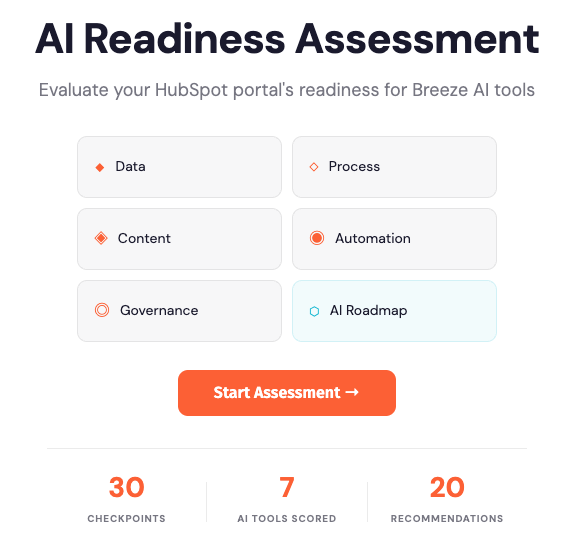
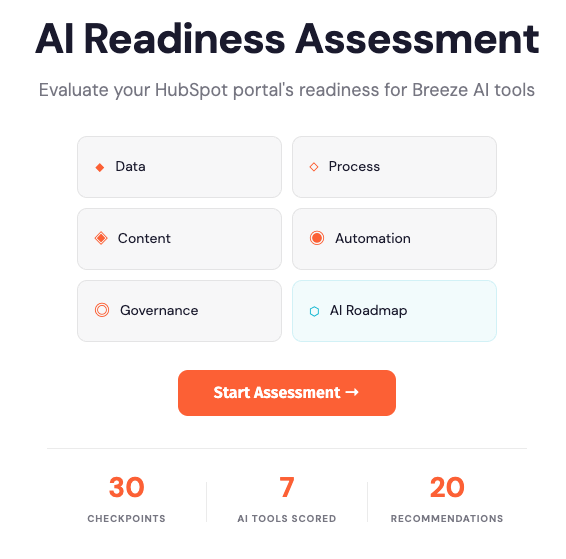
I want you to fill out the 1406 Consulting AI Readiness Scorecard. This is a tool we built specifically to assess whether an organization is prepared to implement Breeze AI effectively. It evaluates five critical dimensions across 30 checkpoints, giving you an explicit, organization-specific roadmap to success.
The Five Dimensions:
-
Data Readiness assesses whether your business data is in shape for Breeze to actually use. Are your CRM records clean? Do you have complete contact information? Are your company records filled in? Is your data consistent across systems? If your data is messy, Breeze can't give you good insights. These checkpoints tell you exactly where your data gaps are.
-
Process Readiness evaluates whether you have documented workflows and clear processes. Does your team understand how work gets done? Are there documented steps for common tasks? Do people follow the same process or does everyone do it their own way? Breeze works best when you have clarity about your processes. These checkpoints show you where the chaos lives.
-
Content Readiness looks at whether you have the brand, messaging, and knowledge assets Breeze needs to work with. Is your brand kit complete? Do you have documented brand voice and tone? Do you have positioning statements? Do you have case studies, product descriptions, and other reference materials? Breeze pulls from these to create on-brand content. These checkpoints tell you what's missing.
-
Automation Readiness assesses whether your workflows, systems, and team are prepared to actually use Breeze agents to automate work. Do you have workflow automation already in place? Are your teams using HubSpot workflows? Are you clear on what could be automated vs. what requires human judgment? These checkpoints show you where automation opportunities exist and where you need foundational work first.
-
Governance Readiness evaluates your data security, compliance, and decision-making frameworks. Do you have clear guidelines on data access and permissions? Do you understand your compliance requirements? Do you have approval workflows for important decisions? Is there clarity on who owns what? These checkpoints ensure you can scale Breeze safely.
How the Scorecard Works:
The scorecard gives you 30 checkpoints across these five dimensions. For each checkpoint, you answer yes/no or rate your readiness on a scale. The output isn't a single number. It's a dimension-by-dimension breakdown that shows you exactly where you're strong and exactly where you're weak.
More importantly, it generates an organization-specific roadmap. It doesn't say "you're ready" or "you're not ready." It says:
"Your data is 70% ready. Here's what to clean up first. Your processes are 40% documented. Here's the priority order for documentation. Your content is 85% ready. Your automation readiness is 50%. Your governance is 60%."
Then it builds a sequenced roadmap: Fix data gaps first (they impact everything else). Document the five highest-value processes in parallel. Build out missing content assets. Then you're in a position to scale automation. Governance becomes easier once you have clarity on the other four.
What This Means for Your Rollout:
Some organizations can skip ahead. If your data is clean and your processes are documented, you can focus on content and automation. Others need to do foundational work first.
The scorecard tells you which path you're on. And importantly, it gives you priorities. Not "improve everything." But "fix these three data issues, document these two processes, build these four content assets, and you're ready to roll."
Example of What You'll Learn:
Let's say you run the scorecard and get these results:
-
Data Readiness: 65% (Contact records are incomplete. Company data is inconsistent. You're missing industry and employee count data.)
-
Process Readiness: 45% (You have a campaign process but it's not documented. You have no documented content creation process. Email workflows are ad hoc.)
-
Content Readiness: 80% (Brand kit is complete. Positioning is clear. You're missing customer success stories and case studies.)
-
Automation Readiness: 40% (You have basic workflows. You haven't defined what could be automated. Teams aren't comfortable with AI automation yet.)
-
Governance Readiness: 70% (Data access is clear. Approval workflows exist. You need clearer guidelines on AI-generated content review.)
The scorecard tells you: "Start here: Clean up contact records (15 minute project). Document your content creation process (4 hour project). Then run a pilot Breeze rollout with 3 power users while you work on company data enrichment in the background."
It's not "be ready before you start." It's "start with this, do that in parallel, scale when you hit these milestones."
Why This Matters:
Most teams don't know where to focus. They try to improve everything at once. They get overwhelmed. They give up.
The AI Readiness Scorecard tells you exactly what to focus on first, in what order, based on your specific situation. It's not generic advice. It's your organization's roadmap.
Action: Fill out the AI Readiness Scorecard this week. Study your results across the five dimensions. Note which areas are strongest and which need attention. Build your 30-day rollout plan based on your specific dimension scores and the scorecard's recommended priorities.
Conclusion
You came in not knowing how to get started. Now you know the exact six steps, in order, with no ambiguity.
Step 1 took 30 seconds. Step 2 took 2 hours. Step 3 took 30 minutes. Step 4 took maybe an hour. Step 5 took however long your real workflow took. Step 6 involves filling out the AI Readiness Scorecard and building your plan.
That's less than a week of work. And when you're done, you have:
A correct user role configured. A brand kit that ensures brand consistency. Three to five prompts you know you'll use. A custom prompt that embeds your standards. Real proof that Breeze works in your environment. A clear assessment of your readiness. A rollout plan based on actual data.
Most teams skip this work. They turn on Breeze and hope. Those teams get disappointed. The teams that do this work see results. Real results. 30-40% faster content creation. Better brand consistency. More capacity for strategic work.
You're not just rolling out a tool. You're building a new way of working.
The next step is the AI Readiness Scorecard. Fill it out. Share the results with your team. Start your rollout.
References
Featured Content